
Configure Report Styling
Use custom CSS to adapt the visual style of an Audit Lab report. The CSS is saved with the report and affects the generated report preview, shared report view, and PDF export.
Prerequisites
You need access to an Audit Lab audit that already contains a generated report. The examples below start in the audit’s Reports view.
Open the Report Editor
Open Audit Lab, select the audit, and go to the Reports view. In the report list, find the report that you want to style and click Show.
In the Preview Report dialog, click Edit Report.
Open the Styling Tab
In the Edit Report dialog, open the Styling tab.
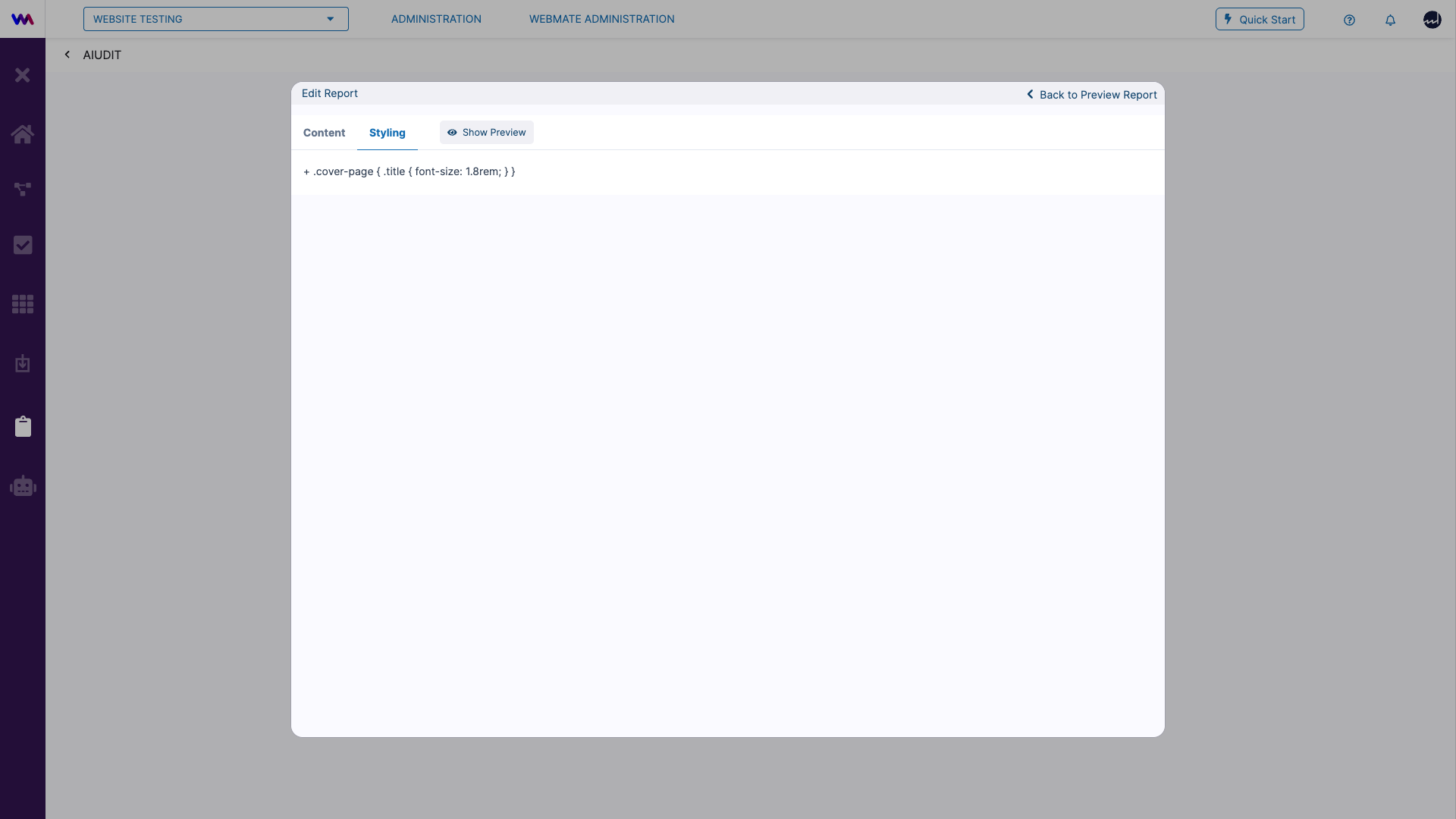
The tab shows the custom CSS that is currently saved for the report.
Edit the Custom CSS
Click the CSS text to open the editor. Change the CSS, then click Save.
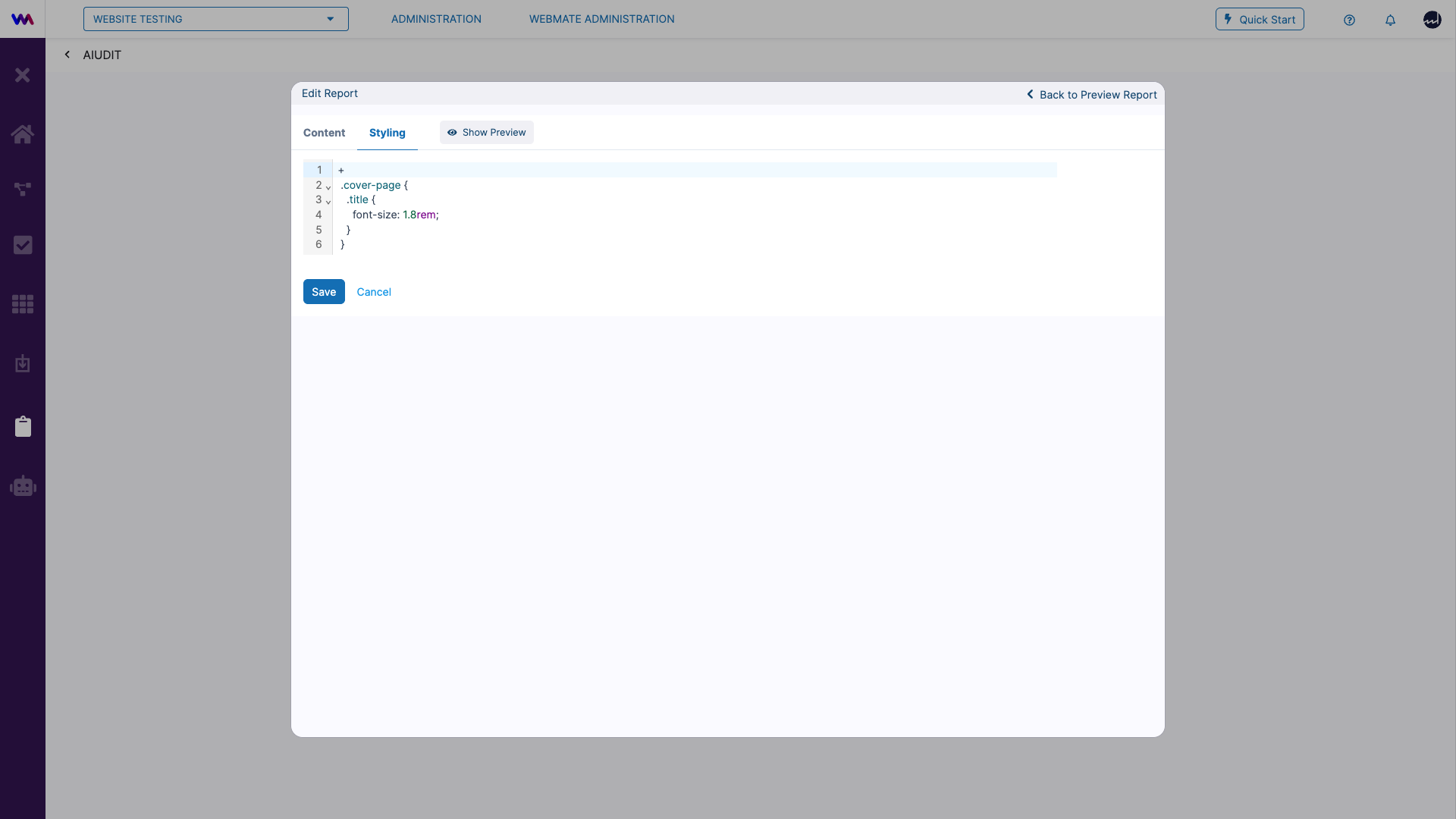
Click Cancel to close the editor without saving your changes.
The following minimal rule changes the report title on the cover page:
For the complete report HTML structure and available classes, see Report Styling CSS Reference .
Preview the Result
Use Show Preview to inspect the report without leaving the editor, or click Back to Preview Report to return to the report preview.
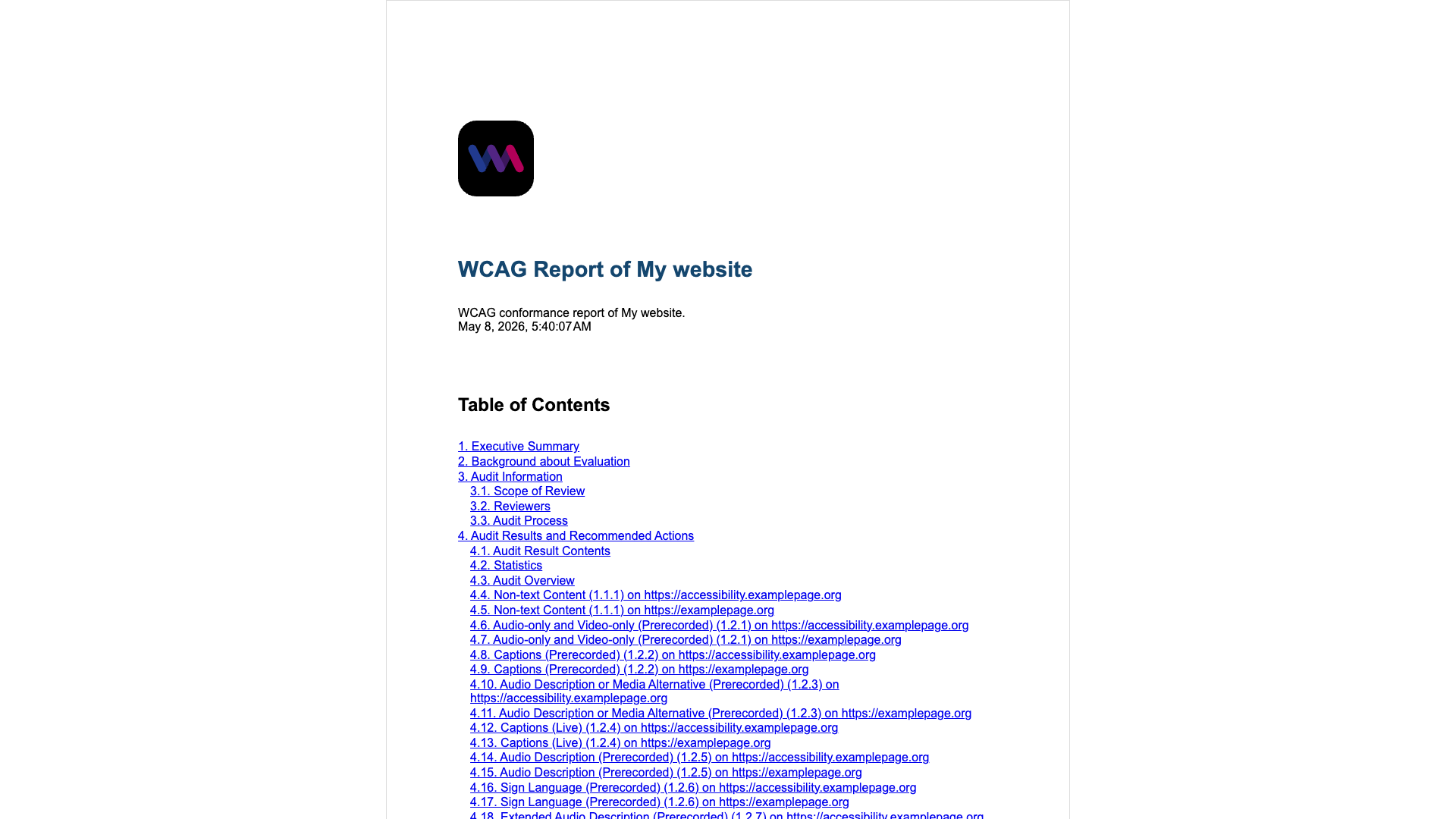
When the preview looks correct, use the report actions to share the report or generate the PDF.