
Migrate BrowserStack Live and App Live Workflows
If your team uses BrowserStack Live or App Live today, the main change in webmate is that you work from a project and a device slot instead of from a disposable session picker. Once a device or browser VM is deployed, you do the rest of the work in the webmate Workbench.
Concept Mapping
| BrowserStack term | webmate term | What changes |
|---|---|---|
| Live session | Device or browser VM in a project slot | You reserve infrastructure inside a project instead of starting an isolated live session. |
| App Live device | Mobile device in a device slot | Device ownership is visible in the slot overview and stays attached to the project. |
| Session dashboard | Workbench plus test run view | Manual execution, screenshots, findings, and review artifacts stay together. |
| Mark bug / notes | Findings and comments in a test run | Findings are part of the webmate test result instead of a separate annotation flow. |
Typical Migration Flow
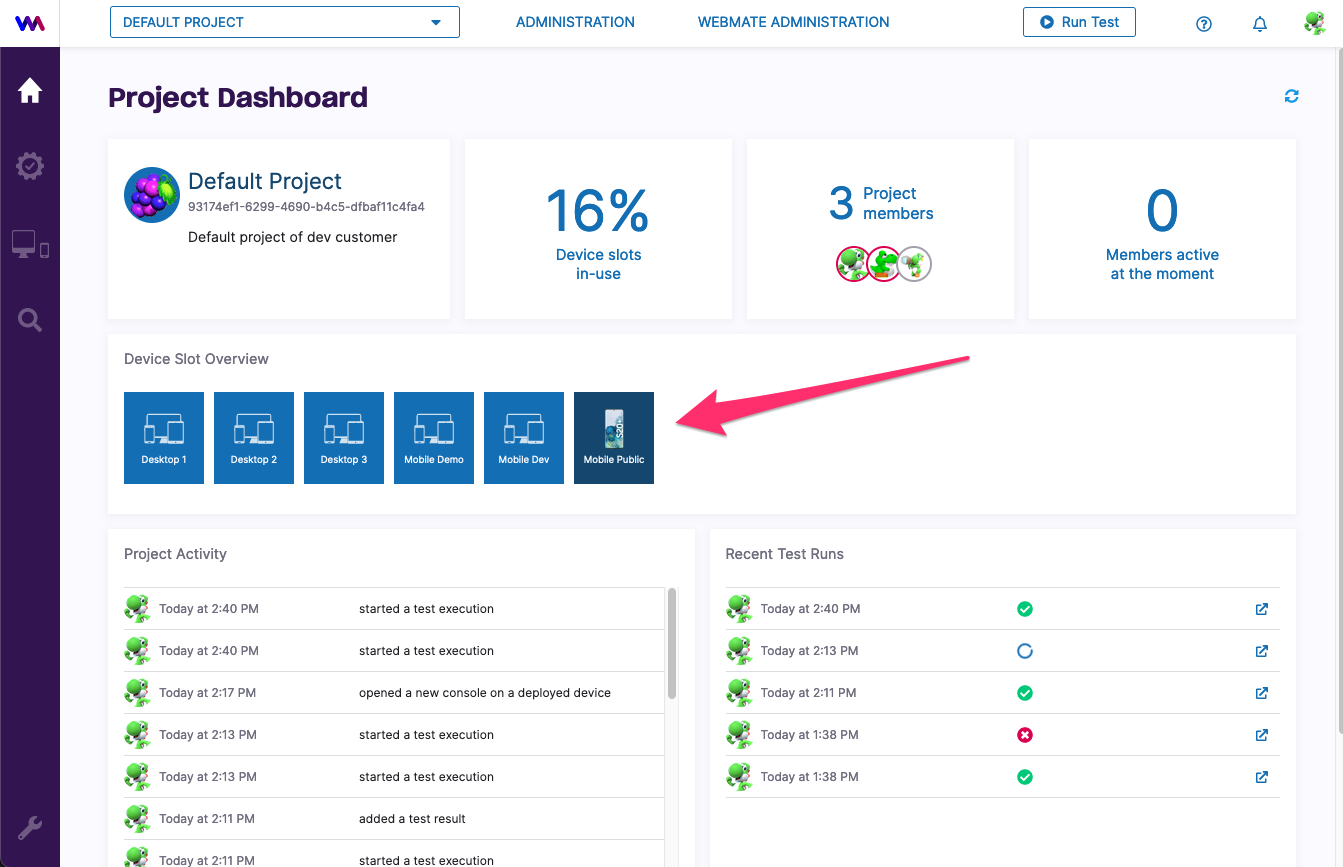
- Open the target webmate project and move to the device-slot overview.
- Deploy the mobile device or browser VM that replaces the Live or App Live target.
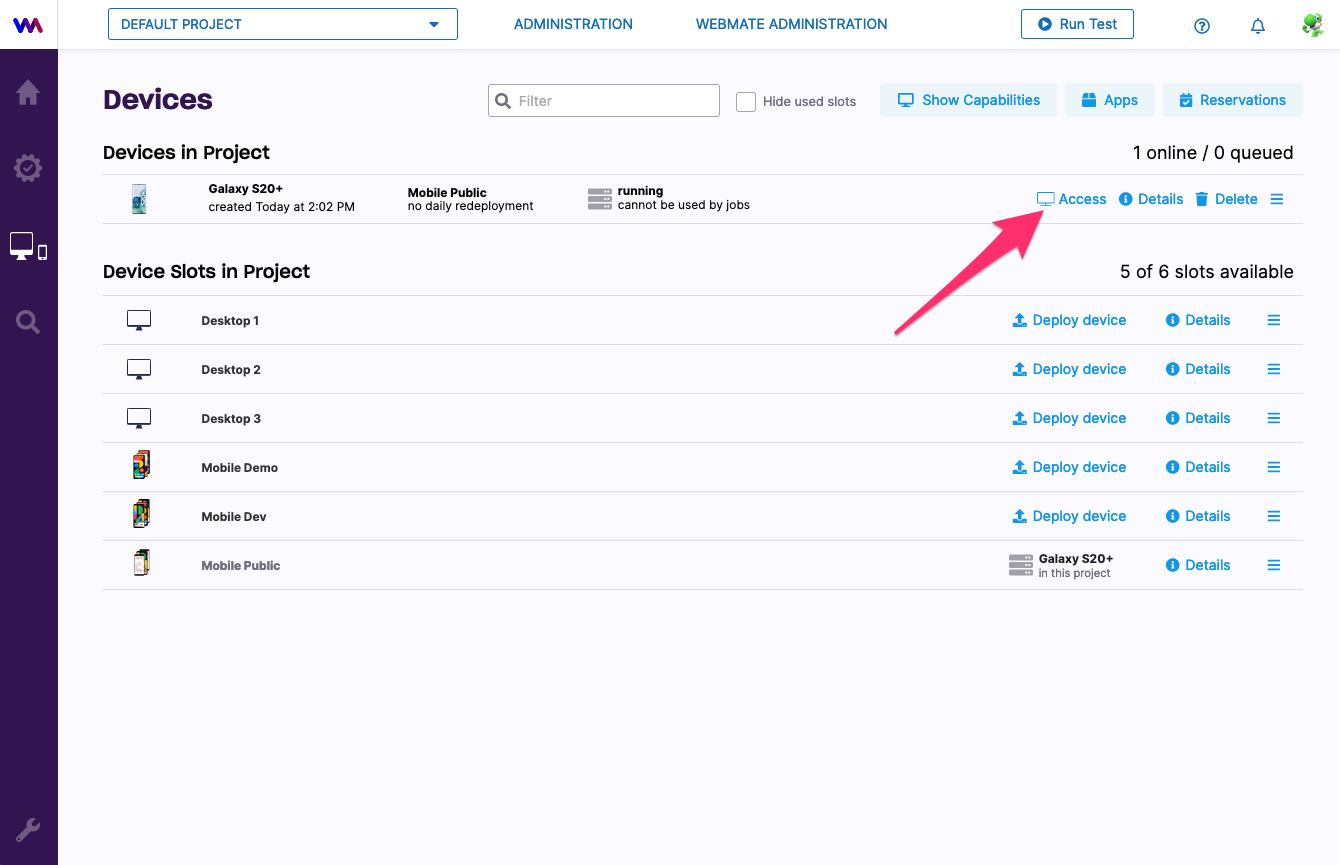
- Click
Accessto open the Workbench and run the manual check there. - Start a test run when you want screenshots, findings, and review artifacts to be collected together.
- Release the device after the session so the slot becomes available again.
The browser-VM flow is closest to BrowserStack Live, while the real-device flow is closest to App Live.
What Your Team Will Notice First
- Device ownership is explicit. A slot stays occupied until you release the device.
- Manual evidence belongs to a named test run instead of to an anonymous live session.
- The same Workbench UI is reused across manual web checks, manual app checks, and assisted debugging workflows.
- Simulation features such as sensor input or biometric testing are part of webmate-specific workflows rather than a separate live-product surface.
Recording Findings
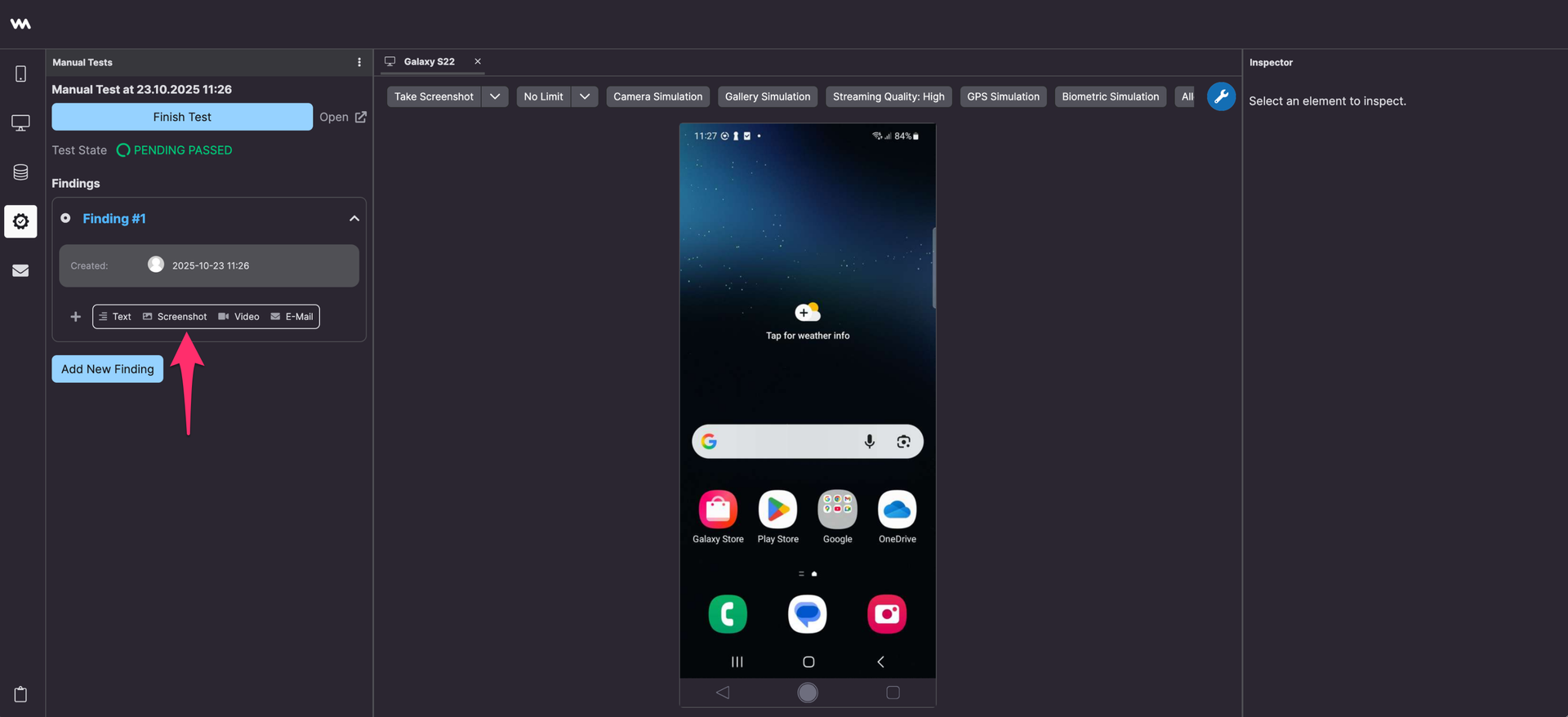
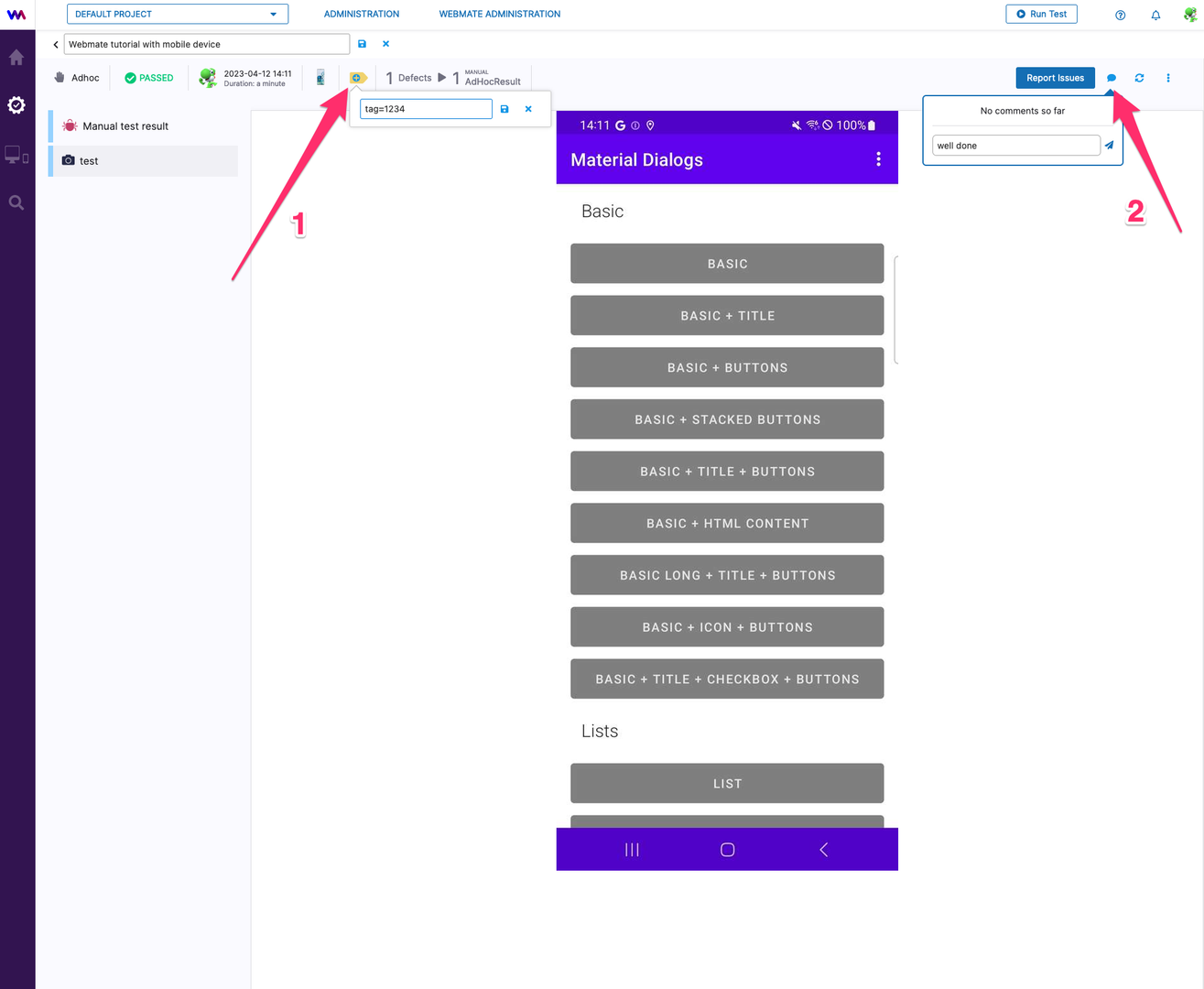
BrowserStack teams often capture notes outside the live session. In webmate, it is usually faster to create a test run and keep screenshots, comments, and findings in the same result record.
Use the screenshot tool when you want evidence, then add findings or comments before you finish the test run.
Next Steps
- For manual web checks, continue with Testing a Web Application .
- For manual app checks, continue with Testing a Mobile App .
- For device tooling, see webmate Workbench and Use Simulation Features .